Blog / Education
Extract text from a scanned PDF: OCR basics
Published 2026-08-24 · Education
You scan a paper document and end up with an image, not editable text: you cannot select, copy or search it. Here is how OCR turns a scanned PDF back into usable text.
Why scanned PDFs are hard to edit
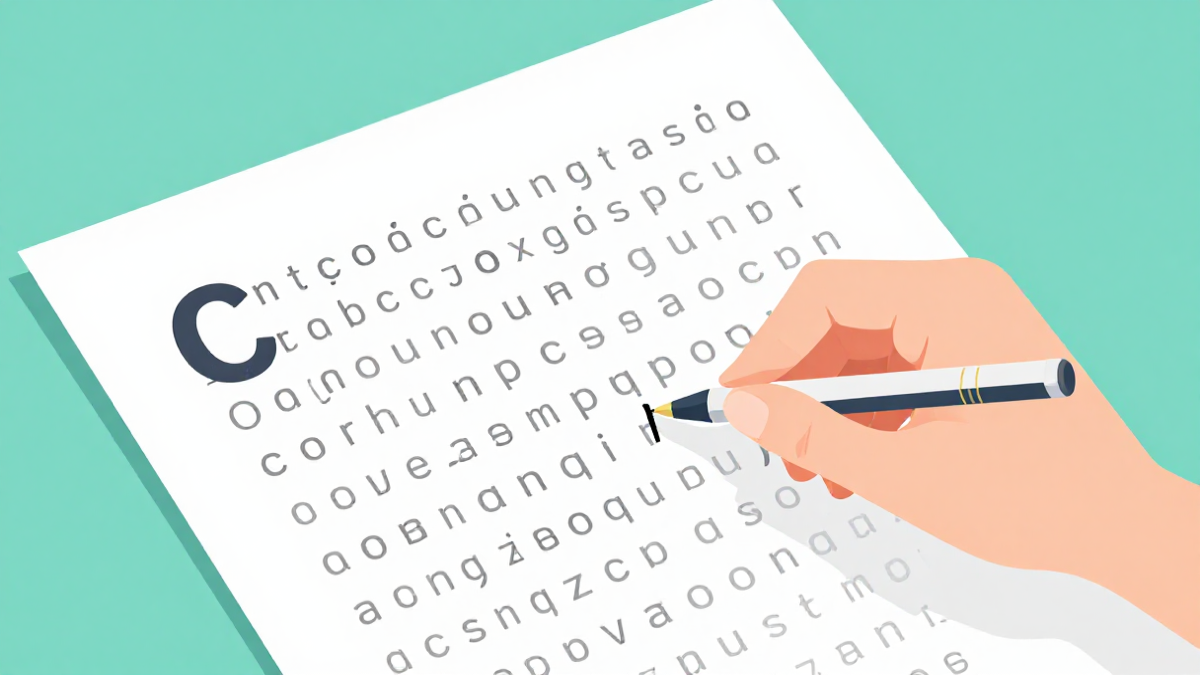
A scanned PDF is really a series of images, one per page. The words you see are pixels, not real text, so the reader cannot select them and search engines or editors cannot read them. To fix that you need OCR.
What OCR actually does
OCR (Optical Character Recognition) looks at the picture of each letter and turns it into real, selectable text. The result behaves like a normal PDF: you can copy a phrase, search the document and reuse the content in other tools.
How to extract the text
Use a converter like PDF to Text which runs the OCR in your browser, drop your scanned file and download the result as a plain-text document or a text-recognised PDF. No upload means your scan stays private, and it costs nothing.
What accuracy to expect
Sharp, straight scans of printed text give the best results. Faded copies, handwriting and skewed pages are harder and may need a couple of attempts. Re-scan at a higher resolution for cleaner output before you convert.
Try Bang PDF for free - no account, no watermark, no upload.
Merge your PDFs now